Agentic Security: A Billion-Dollar Challenge for Startups
AI-driven vulnerabilities are reshaping the cybersecurity landscape, creating a billion-dollar opportunity for startups.
In our previous discussion, we explored how the Model Context Protocol (MCP) is revolutionizing the AI landscape by establishing a standardized communication framework between AI applications, agents, and your existing applications and LLMs. At its core, MCP facilitates communication through three key components:
This tutorial will guide you through building your own MCP server using the .NET SDK. We will cover the following essential topics:
MCPServerToolType and MCPServerTool attributes.To begin, we'll create a new .NET 8 Console Application, as its an LTS version.
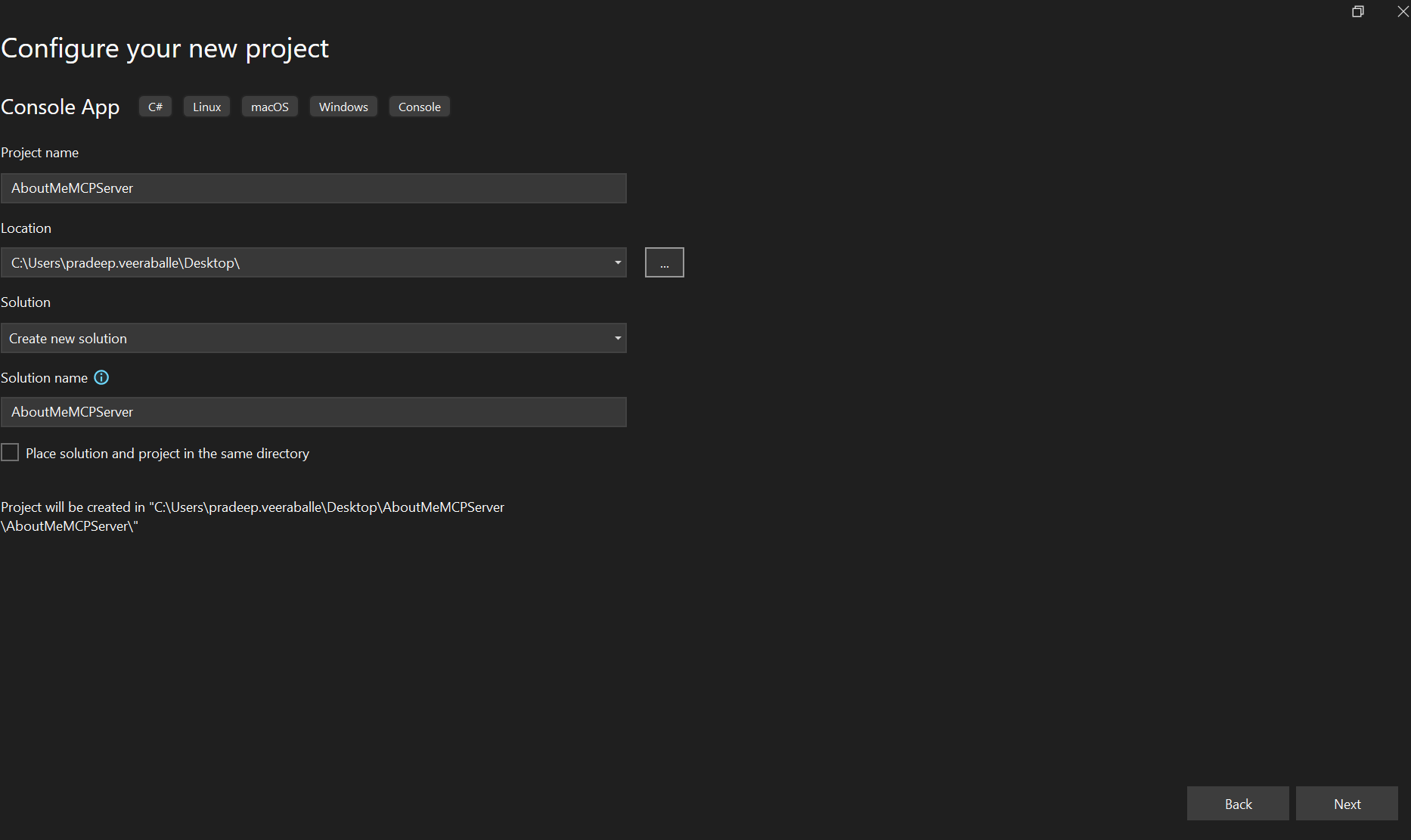
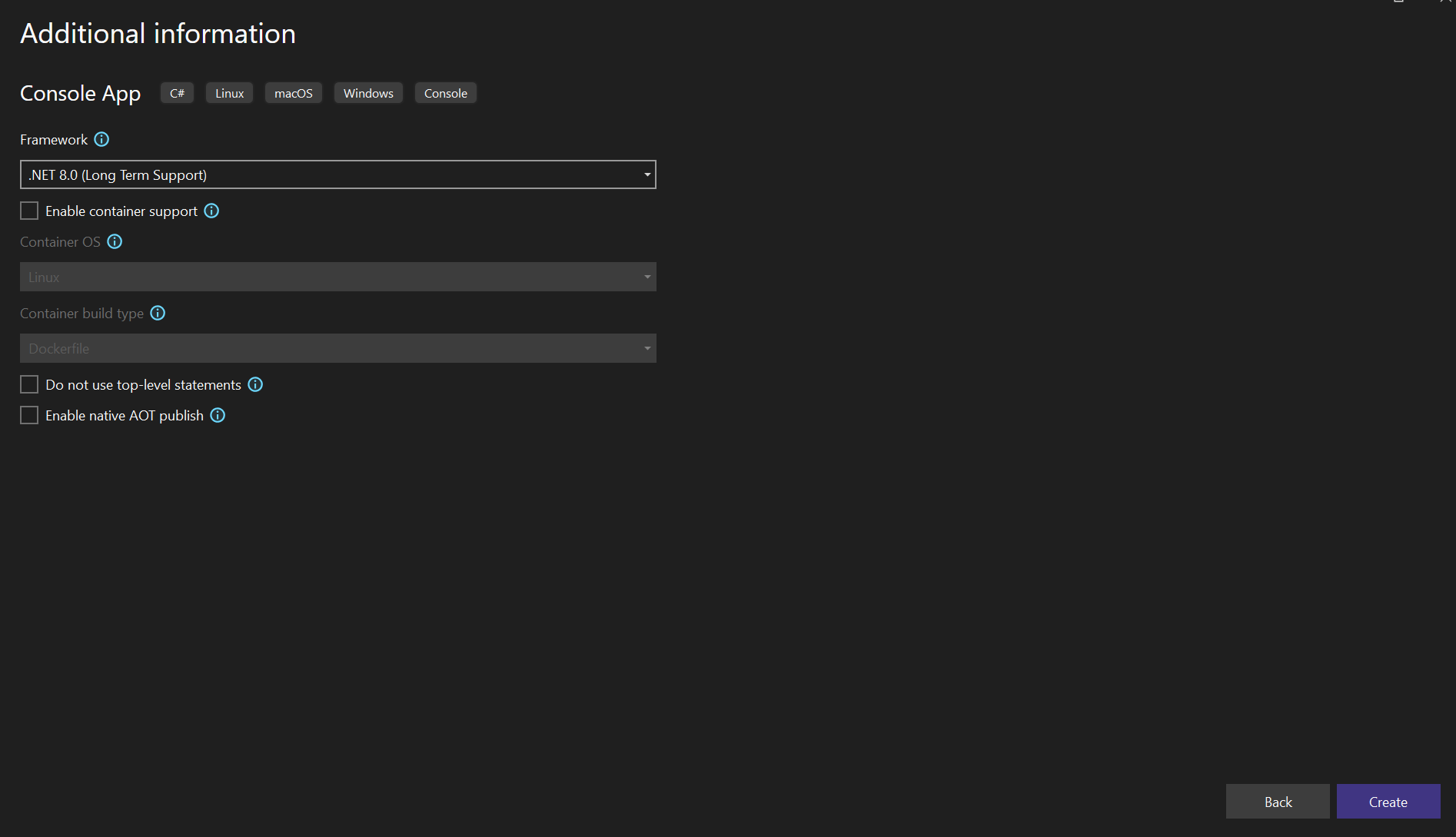
ModelContextProtocol.Server.dotnet add package ModelContextProtocol.Server --prerelease
dotnet add package Microsoft.Extensions.Hosting
ModelContextProtocol.Server: This package provides the core functionalities for building MCP servers. Ensure you install the latest prerelease version.Microsoft.Extensions.Hosting: This package offers abstractions for host applications, simplifying configuration, logging, and dependency injection. Install the latest stable version (e.g., 9.0.5).
Verify that these packages are successfully installed under your project's Dependencies -> Packages section.
Program.csThe Microsoft.Extensions.Hosting package provides the Host class, which simplifies application setup. We'll use Host.CreateApplicationBuilder(args) to configure our host, which automatically sets the content root and loads configurations from appsettings.json, environment variables, and command-line arguments. This approach is a more streamlined alternative to the verbose Host.CreateDefaultBuilder() + .ConfigureServices(...) pattern.
Now, let's modify your Program.cs file:
using Microsoft.Extensions.Hosting;

// Optional: for logging
using Microsoft.Extensions.Logging;
// Required for MCP server extensions
using ModelContextProtocol.Server;

var builder = Host.CreateApplicationBuilder(args);

// Optional: Configure logging if needed
builder.Logging.AddConsole();

// Add MCP server services
// Configures STDIO transport for local client-server communication
builder.Services.AddMcpServer()
    .WithStdioServerTransport()
    .WithToolsFromAssembly();
// Discovers tools within the current assembly

var host = builder.Build();
host.Run();
AddMcpServer(): This extension method registers the core MCP server services with the dependency injection container.WithStdioServerTransport(): This configures the server to support STDIO (Standard Input/Output) transport. STDIO is designed for one-to-one client-server interactions where the MCP client launches the MCP server as a subprocess. The server reads JSON-RPC messages from its standard input and sends responses to its standard output. In the C# SDK, StdioServerTransport is the class responsible for this.WithToolsFromAssembly(): This method instructs the MCP server to scan the current assembly (your project's compiled code) for classes and methods decorated with specific MCP attributes, which define your server's tools.MCPServerToolType and MCPServerToolMCP servers expose functionalities as "tools." In the .NET SDK, you define these tools using attributes. Create a new class file (e.g., MyTools.cs) to house your tools:
using ModelContextProtocol.Server;
using System.ComponentModel;

[McpServerToolType]
public class MyTools
{
    [McpServerTool]
    [Description("Gets information about me.")]
    public string GetAboutMe()
    {
        return "This is Pradeep. Today I read that OpenaAI slashed o3 input and output token costs by 80%. This week I am going to get access to o3-pro";
    }
}
[McpServerToolType]: This attribute marks a class as a container for MCP tools. The server will scan for classes with this attribute to discover available tools.[McpServerTool]: This attribute designates a method as an MCP tool that can be invoked by an MCP client.[Description("...")]: This attribute is crucial. It provides a human-readable description of what the tool does. MCP clients (and the underlying LLMs) use these descriptions to determine which tool to call to fulfill a user's request. Clear and descriptive text is essential for your server to function correctly.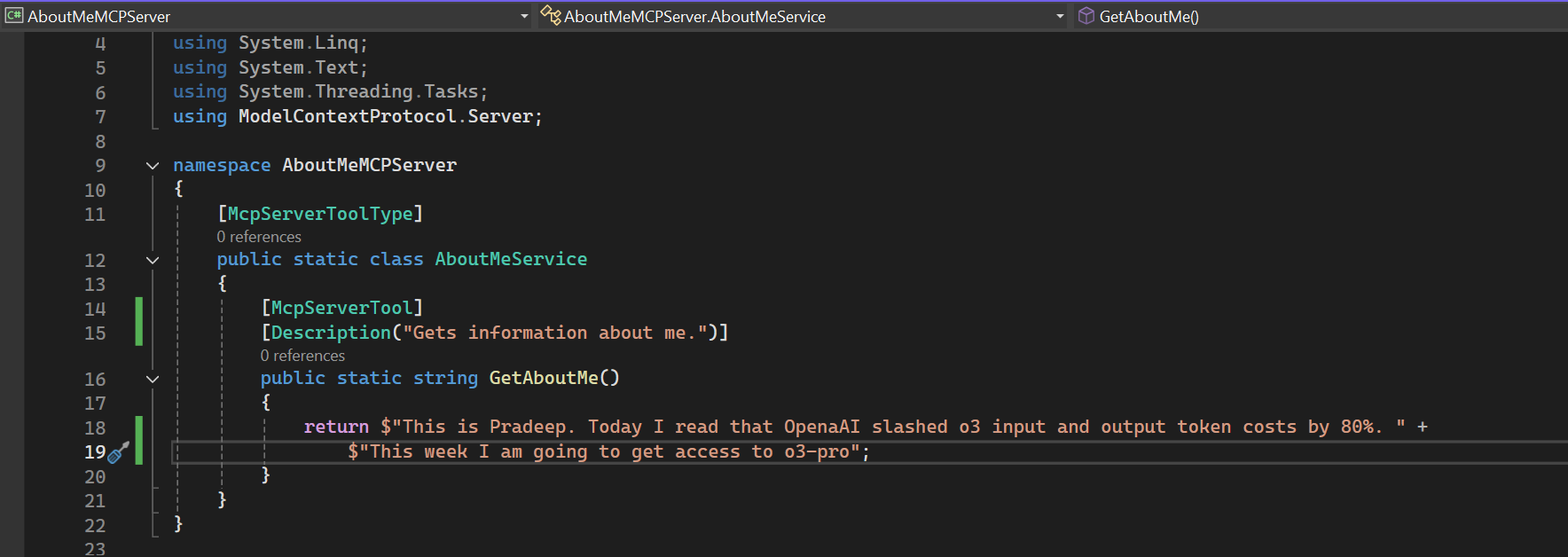
Once your server is built, you need to configure an MCP host to connect to it. Here’s how you would configure Cline to use your new server via STDIO. You'll need to edit Cline's MCP configuration file (cline_mcp_settings.json):
{
    "inputs": [],
    "servers": {
        "AboutMeMCP": {
            "type": "stdio",
            "command": "dotnet",
            "args": [
                "run",
                "--project",
                "C:\\Path\\To\\Your\\Project\\YourProject.csproj"
            ]
        }
    }
}
"AboutMeMCP": A unique name for your server."type": "stdio": Specifies the connection type."command": "dotnet": The command to execute to start your server."args": An array of arguments passed to the command.
"run": The dotnet command to build and run the project."--project": Specifies the path to your .csproj file. Make sure to replace the placeholder path with the actual path to your project file.While STDIO is excellent for local development, you'll need different transport mechanisms for remote servers that handle multiple clients.
StreamableHttpServerTransport): This transport is ideal for hosting an MCP server in a centralized location. It uses Server-Sent Events (SSE) over HTTP for one-way communication from the server to the client. This is perfect for scenarios where the server needs to push real-time updates, such as streaming completion results or progress on long-running tasks.StreamServerTransport): This transport implements full bidirectional JSON-RPC messaging over arbitrary streams, such as network sockets, memory streams, or pipes. This allows for more complex, two-way communication between the client and server.You can find more detailed documentation on these transports and other advanced features in the official C# SDK documentation.
Subscribe wiring is coming soon. For now, follow the daily news feed or connect on LinkedIn for updates.

AI-driven vulnerabilities are reshaping the cybersecurity landscape, creating a billion-dollar opportunity for startups.
Pinterest is testing Restyle, an AI-powered feature that allows users to visualize furniture and decor in their own rooms.

OpenAI introduced a framework for reporting model misalignment incidents, aiming to establish industry standards.